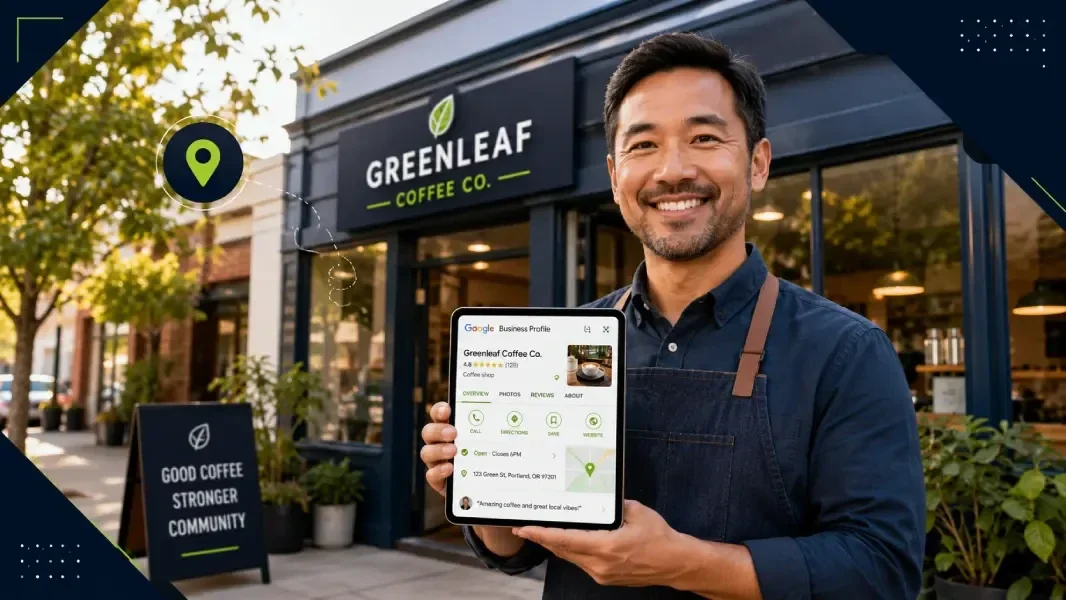
Author, Steve Davies|LocalBizNet.com
If you run a local business and you don't have a Google Business Profile, you're invisible to a huge chunk of potential customers. It's that simple.
When someone searches for "plumber near me" or "best dentist in Kingwood," Google doesn't pull results from thin air. It looks at Google Business Profiles. If yours doesn't exist — or if it's half-finished and collecting dust — you're handing those customers directly to your competition.
The good news? Setting up a Google Business Profile is free, and it takes less time than you'd think. The key is doing it right from the start so your profile actually works for you.
Here's exactly how to do it, step by step (for a 15 point actionable step-by-step list, check out this other article).
What Is a Google Business Profile and Why Does It Matter?
A Google Business Profile (formerly Google My Business) is the listing that appears when someone searches for your business on Google or looks for businesses like yours on Google Maps. It shows your business name, address, phone number, hours, photos, reviews, and more.
Think of it as your digital storefront on Google. For many customers, it's the first impression they'll ever have of your business.
Here's why it matters so much for local businesses:
A complete Google Business Profile makes you eligible to appear in the Local Pack — that group of three businesses Google highlights at the top of local search results, right above the regular website listings. That's prime real estate, and it drives a massive amount of clicks and calls.
Google's AI Overviews now pull information directly from Business Profiles when answering local questions like "where can I get my car detailed in Humble?" If your profile is complete and well-optimized, you're feeding Google exactly what it needs to recommend you.
And here's a number worth remembering: businesses with 100 or more photos on their profile receive 42% more requests for directions and 35% more clicks to their website than businesses with fewer than 10 photos. Your profile is working for you around the clock — but only if you set it up properly.
Step 1: Sign In to Google and Get Started
Head to google.com/business and click "Manage now" in the top right corner.
You'll need a Google account to proceed. If you already have a Gmail address or use any Google service, you're set. If not, create a free Google account first.
A word of advice: Use a business email or a Google account that belongs to the business, not your personal Gmail. This matters down the road if you ever need to transfer ownership or add team members to manage the profile.
If you're in the Houston area and you already have a Google account tied to your business domain, that's ideal. It signals to Google that your business has a legitimate online presence.
Step 2: Enter Your Business Name
Type your business name exactly as it appears in the real world. This means the name on your storefront sign, your business cards, your website, and your legal paperwork.
Don't add keywords, city names, or marketing phrases to your business name. For example, if your business is called "Precision Plumbing," don't enter "Precision Plumbing — Best Plumber in Houston TX." Google's guidelines explicitly prohibit this, and it can get your profile suspended.
If your business name pops up in the suggestions, it may already have a listing. You can claim that existing listing rather than creating a duplicate.
Step 3: Choose Your Primary Business Category
This is one of the most important decisions you'll make during setup. Your primary category is one of the biggest factors Google uses to determine when your business shows up in search results.
Start typing your industry and Google will show you a list of predefined categories. Choose the most specific one that accurately describes your core business.
For example, if you're an HVAC company, don't just pick "Contractor." Pick "HVAC Contractor." If you're a family dentist, pick "Dentist" or "Family Dentist" rather than "Medical Office."
You can add secondary categories later to cover other services you offer, but your primary category should represent the main thing you do.
Pro tip: Look at what categories your top-ranking competitors are using. Search for your main service plus your city on Google, find the businesses showing up in the Local Pack, and check their profiles to see what category they've selected. This gives you insight into what's working in your market.
Step 4: Add Your Business Location
Google will ask whether you have a physical location that customers can visit. If you have a storefront, office, or shop — select "Yes" and enter your full street address.
If you're a service-area business (you go to your customers rather than them coming to you — think plumbers, electricians, mobile pet groomers), you have two options. You can list your address and hide it from public view, or you can skip the address entirely and just define your service areas instead.
For service-area businesses in the Greater Houston area, define your service areas clearly. Include the specific cities and neighborhoods you serve — Houston, Kingwood, Humble, Atascocita, Spring, The Woodlands, Conroe, and so on. This helps Google match you with searches happening in those areas.
Make sure your address (if listed) matches exactly what's on your website, your social media profiles, and any online directories. Consistency across all platforms is a ranking signal Google pays close attention to.
Step 5: Add Your Contact Information
Enter your business phone number and website URL. Use a local phone number rather than a toll-free 800 number if possible. Local numbers reinforce your connection to the area and tend to perform better in local search.
Your website URL should point to a relevant page. If you have a dedicated landing page for the service area or service type, use that. Otherwise, your homepage works fine.
Double-check everything. A wrong phone number means lost customers. A broken website link means lost trust.
Step 6: Verify Your Business
Verification is mandatory. Google needs to confirm that your business is real and that you're authorized to manage the listing. Until you're verified, your profile won't appear in search results and you won't have full control over your listing.
Here are the verification methods Google may offer you:
Video verification has become the most common method in 2026, especially for new listings. Google asks you to record a short video showing your business location, signage, and proof of operations. You'll need to demonstrate that the business physically exists at the address you listed and that you're authorized to manage the profile. Keep the video clear, well-lit, and follow Google's instructions carefully.
Postcard verification is still available in some cases. Google mails a physical postcard with a verification code to your business address. This typically takes 5 to 14 days. Once you receive it, log back in and enter the code.
Phone or email verification is sometimes offered to businesses with an established digital footprint and consistent listings across the web. Google sends a code via call, text, or email.
Google Search Console verification can provide instant verification if your website is already verified through Search Console. This is a great shortcut for established businesses.
Don't let the verification step sit unfinished. Your profile is essentially dormant until verification is complete.
Step 7: Write a Compelling Business Description
Your business description gives you up to 750 characters to tell potential customers what you do and why they should choose you. This is your elevator pitch.
Focus on what makes your business different. Mention your experience, your specialties, and the areas you serve. Write for the customer, not for Google — but naturally include your key services and location.
For example: "Precision Plumbing has served homeowners in Kingwood, Humble, and Atascocita for over 15 years. We specialize in emergency repairs, water heater installation, and whole-home repiping. Licensed, insured, and committed to same-day service when you need it most."
Avoid generic filler like "We are the best" or "Number one in customer service." Be specific. Be real.
Step 8: Set Your Business Hours
Enter your regular business hours accurately. If you're closed on certain days, mark them as closed. If your hours change seasonally, set a reminder to update them.
Google also lets you set special hours for holidays and events. This is important because nothing frustrates a customer more than driving to a business that Google says is open, only to find the doors locked.
If you offer after-hours emergency service (common for plumbers, locksmiths, HVAC companies), mention that in your business description rather than setting 24/7 hours unless you truly staff around the clock.
Step 9: Add High-Quality Photos
This is where most businesses drop the ball, and it's costing them customers.
Photos are one of the most influential elements of your Google Business Profile. They help customers see what your business looks like, what your work quality is, and whether your space feels welcoming and professional.
At minimum, add these types of photos:
Your storefront or exterior from the street (so customers can find you), your interior showing the space where customers spend time, your team members in action, examples of your work or products, and your logo as your profile photo.
Aim for at least 10 to 15 quality photos to start, then add new ones regularly. Even simple smartphone photos of a finished project, your team at work, or your shop on a busy day add up over time.
Google's AI now analyzes photo quality and relevance, so blurry or irrelevant stock photos won't do you any favors. Authentic photos of your actual business consistently outperform generic images.
Step 10: Add Your Products and Services
Google gives you the ability to list specific products and services directly on your profile. This is incredibly valuable because it helps Google match your business with more specific searches.
Instead of just showing up for "dentist in Spring," a well-built services section can help you appear for "dental implants in Spring" or "teeth whitening near me."
For each service, add a name, a brief description, and a price (if applicable). Be thorough — list everything you offer. Google's machine learning can now automatically populate some service suggestions based on your category, but you should still manually review and customize these to make sure they're accurate.
For businesses that sell physical products, you can add those too with photos, descriptions, and pricing.
Step 11: Turn On Messaging
Google Business Profile allows customers to message you directly from your listing. When messaging is enabled, a "Chat" button appears on your profile in Google Maps.
This is a powerful feature because many customers — especially younger ones — prefer texting over calling. If you can respond quickly (within a few minutes during business hours), turning on messaging can generate leads that would otherwise bounce to a competitor.
Google now also offers AI-powered messaging that can handle basic customer inquiries automatically, using information from your profile, website, and reviews. This means customers can get instant answers even when you're busy.
Set up automated welcome messages and FAQ responses to handle common questions like "What are your hours?" or "Do you offer free estimates?"
Step 12: Start Collecting and Responding to Reviews
Reviews are the lifeblood of your Google Business Profile. They influence your ranking in local search, and they're often the deciding factor for customers choosing between you and a competitor.
Here's how to build a strong review presence:
Ask every satisfied customer to leave a review. Most people are happy to help — they just need a nudge and an easy way to do it. Create a direct link to your review page and send it via text or email right after completing a job or transaction.
Respond to every single review, both positive and negative. Thank customers who leave positive reviews. For negative reviews, respond professionally, acknowledge the issue, and offer to make it right. Your response isn't just for that one reviewer — it's for every future customer who reads it.
Never buy fake reviews or use review exchange schemes. Google's detection of fake reviews has become extremely sophisticated, and the penalty can tank your ranking for months.
Step 13: Create Your First Google Business Profile Post
Google Posts let you share updates, promotions, events, and news directly on your profile. Think of them like mini social media posts that show up when someone searches for your business.
Businesses that post weekly see roughly 28% higher visibility than profiles that sit idle. Post at least once a week. Include a high-quality photo or short video, a clear call-to-action, and keep the text concise — under 150 characters works best for mobile readability.
Post ideas include seasonal promotions, new service announcements, before-and-after photos of recent projects, tips related to your industry, community involvement, and customer success stories.
Step 14: Keep Your Profile Updated and Active
Setting up your Google Business Profile is not a one-and-done task. Google rewards profiles that look actively managed.
Check your profile at least once a month. Update photos, respond to new reviews, publish fresh posts, and make sure all your information is still accurate. If you move locations, change phone numbers, add new services, or adjust your hours — update your profile immediately.
Google regularly adds new attributes and features based on search trends. Check your dashboard weekly for new options you can fill out. Attributes have become critical ranking factors because they directly answer the kinds of questions Google's AI systems are trying to resolve.
The businesses that dominate local search aren't just the ones with the best profiles at launch — they're the ones that keep showing up, week after week, month after month.
Common Mistakes to Avoid
Using a fake or inaccurate address. This is a guaranteed way to get your profile suspended. Google verifies addresses, and inconsistencies between your profile and other online listings raise red flags.
Stuffing keywords into your business name. Your business name should be your actual business name. Nothing more.
Ignoring reviews. Unanswered reviews — especially negative ones — make your business look indifferent. Respond to every one.
Setting it and forgetting it. An outdated profile with wrong hours, old photos, and no recent activity signals to Google (and to customers) that your business may not be actively operating.
Using stock photos. Customers want to see your real business, your real team, and your real work. Authentic photos build trust.
What Happens After Your Profile Is Live
Once your profile is verified and fully built out, Google starts showing it in relevant local searches. You'll begin appearing in Google Maps, and potentially in the Local Pack for your target keywords.
From the Google Business Profile dashboard, you can track how customers find you, what searches trigger your listing, how many people call you or request directions, and how your photos perform compared to similar businesses.
Use this data to refine your approach. If certain services generate more profile views, highlight those. If customers search for you using terms you haven't addressed, add those to your services section.
Your Google Business Profile is one of the most powerful free marketing tools available to any local business. The businesses that take it seriously — and keep working on it — are the ones showing up when customers are ready to buy.
Once your profile's live, reviews are the natural next step — our FAQ page covers that in more depth.
Need Help Optimizing Your Google Business Profile?
If you're finding it difficult to follow along, feeling overwhelmed by the process, or simply don't have the time to manage it yourself, we're here to help.
Schedule a consultation with Steve Davies for a personalized Google Business Profile Gap Analysis. We'll review your profile, identify missed opportunities, uncover areas for improvement, and provide practical recommendations that can help increase your visibility in local search results.
And if you're looking for a trusted marketing partner who can handle more than just your Google Business Profile, LocalBizNet offers a full range of services tailored to small businesses, including local SEO, reputation management, website design, social media management, content creation, video production, and more.
Whether you need a one-time review, ongoing support, or a complete marketing strategy, we'll create a customized solution based on your goals and budget.
Contact us today to schedule your Google Business Profile review or request a personalized quote. We're always happy to answer your questions and help your business attract more customers online.
Frequently Asked Questions About This Article